Run KDE Plasma Desktop In Docker With Ease


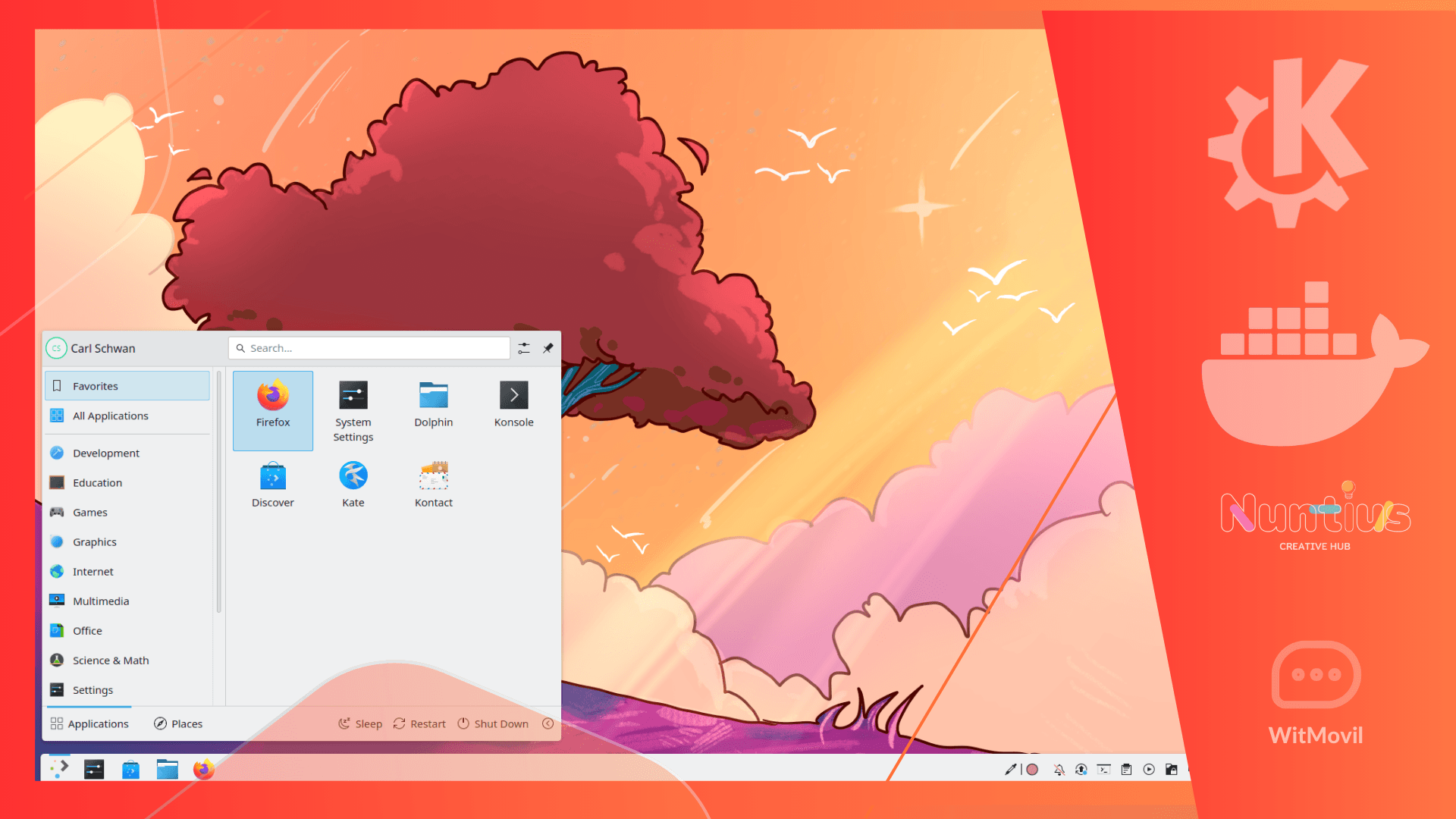
KDE Plasma Desktop is a versatile and modern graphical environment loved by Linux users worldwide. But what if you could run it in a Docker container and access it remotely through VNC or directly in your web browser using noVNC? This setup is ideal for developers, testers, or anyone who needs a lightweight, portable Linux desktop.

In this article, we’ll explore how to set up KDE Plasma Desktop in Docker, its key features, and why it’s a game-changer for remote desktop solutions.
What is KDE Plasma Desktop in Docker?
Docker allows you to containerize applications, providing isolation and portability. By combining Docker with KDE Plasma Desktop, you can run a full-featured Linux GUI in a container without installing it directly on your host system.
With this setup, you can:
- Access KDE Plasma Desktop via VNC or a browser (noVNC).
- Preserve settings and files across sessions with persistent storage.
- Use it on various architectures, including ARM-based devices like Raspberry Pi.
If you are on ARM use pi-apps to run the app store, run it with non-root user “nuntius”
Key Features of This Dockerized KDE Setup
- Modern Desktop Experience: Access KDE Plasma Desktop, one of the most customizable and powerful environments.
- Remote Access Options: Use VNC for secure desktop connections or noVNC for browser-based access.
- Easy Deployment: A preconfigured Dockerfile simplifies installation and setup.
- Persistent Storage: Keep your configurations and desktop files intact across container restarts.
- ARM Support: Optimized for ARM-based devices with optional Pi-Apps installation.
How to Get Started?
- Clone the Repository
Start by cloning the KDE Plasma Desktop in Docker repository:git clone https://github.com/nuntius-dev/KDEPlasmaDesktopinDocker.git cd KDEPlasmaDesktopinDocker - Build the Docker Image
docker build -t kde-plasma-docker . - Run the Container
docker run -d -p 5901:5901 -p 8080:8080 kde-plasma-docker - Access the Desktop
- VNC Viewer: Connect to
localhost:5901using the passworddocker. - Browser: Open http://localhost:8080/vnc.html to access the desktop via noVNC.
- VNC Viewer: Connect to
Why Use KDE Plasma Desktop in Docker?
- Portability: Run the same setup across multiple devices.
- Security: Isolated from the host system, reducing the risk of system modifications.
- Convenience: Access a complete desktop environment without full system installation.
- Flexibility: Ideal for testing, development, or running GUI apps in isolated environments.
Conclusion
Running KDE Plasma Desktop in Docker is a revolutionary way to bring the power of Linux GUIs to any device. Whether you’re a developer, a sysadmin, or just exploring new tech, this setup offers unmatched flexibility and ease of use.
Start your journey today by visiting the GitHub repository.
Explore more with Witmovil—your source for tech tips and solutions!